


 Log in to the system.
- QThe message 'A screen capture program has been detected' appears.
-
A
To protect content copyright, Kollus Player is equipped with a feature that automatically stops playback if screen or audio capture programs are running.
Therefore, if you see the message "A capture program has been detected," please close all capture software and try playing the video again.
* For PC Users
Recommended: Uninstall capture programs and reboot, or force-close (Process Kill) all related tasks before playing.
- Even if the program is not actively running, playback may be blocked if the process remains in the background process list.
- If you do not reboot after uninstallation, residual processes may still prevent playback.
- Some antivirus software (e.g., Virus Chaser) may misidentify the player as a malicious file, preventing playback.
In this case, please pause or uninstall the antivirus software, reboot your system, and try playing the video again.
(For users of other antivirus software, please refer to: http://info.kollus.com/faq/?number=53)
For Mac OS/X: Completely terminate the QuickTime Player process.
- QuickTime Player for Mac has a built-in screen recording feature.
- Kollus Player will not run if QuickTime is active in the background.
- As QuickTime is a default macOS application, it cannot be uninstalled.
- Therefore, you must completely 'Quit' the QuickTime program from the top menu bar.
Recommended: Uninstall capture programs (e.g., Ancamer) and reboot.
For Chrome: Remove capture-related extensions (e.g., Snagit) from the Extension Plug-in menu. (http://info.kollus.com/faq/?number=49)
* For Mobile Users
Simply removing the shortcut icon does not fully uninstall the capture app.
(Please ensure the app is completely deleted via 'App Uninstall/Delete' in settings.)
Recommended: Uninstall recording apps (e.g., Mobizen) and reboot your device.
- QThe video is not downloading.
-
A
Please click the link below to install the latest version of the player.
- QThe video keeps buffering.
-
A
We recommend using a stable network connection while watching lectures. Please check your internet environment before starting your studies.
Please check the status of your Wi-Fi, modem, or router. If playback issues persist after checking, please try uninstalling and reinstalling the player.
- QCan I adjust playback speed?
-
A
There is a playback speed control feature located at the bottom of the video player.
Click the ▼ button or press 'X' on your keyboard to decrease the speed by 0.1x (minimum 0.5x).
Click the ▲ button or press 'C' on your keyboard to increase the speed by 0.1x (maximum 2.0x). Press 'Z' to reset the playback speed to 1.0x.
- QAn insufficient capacity message appears.
-
A
If you are using an SSD or have limited HDD space, you may find your disk space decreasing after watching video lectures.
In this case, please use the "Clear Cache" feature in the player as described below.
[Windows - IE, Firefox, Opera, Safari Users]
1. Click the Settings (gear icon) at the bottom right of the player.
2. Click the Trash Can icon at the top right of the settings menu.
3. Under the "Cache Setting / Remaining Cache Info" menu, click the Trash Can button.
4. Cache clearing is complete.
[Windows - Chrome (v45 or higher), Windows 10/11 - Edge Users]
1. Click the System Tray icon on the Windows Taskbar (near the clock).
2. Right-click the Kollus Player icon.
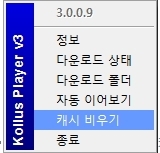
3. Click the "Clear Cache" (캐시비우기) menu.
4. Cache clearing is complete.
Alternatively, you can manually delete cache files by navigating to Documents > KollusPlayer3 > Files in Windows File Explorer and deleting files ending with _c.
(Note: Files can only be deleted after closing the player.)
- QCan I take the course on mobile and tablet devices?
-
A
Most smartphones and tablet devices are compatible for watching lectures.
However, playback may not be supported on certain customized or manufacturer-modified devices, such as mobile phones manufactured for the Chinese domestic market (e.g., Xiaomi) or G-Pad devices provided through specific service plans (e.g., LG U+ HomeBoy).
- QThe message 'Device Overuse' appears.
-
A
Our site uses Kollus Player, and you can register and use up to 5 devices.
If you see a "Device Limit Exceeded" message, please contact the administrator to request a device reset.
- QAre there device or version restrictions?
-
A
Kollus Player supports content playback on the latest versions of HTML5-compatible browsers, including Google Chrome, Microsoft Edge, Mozilla Firefox, Apple Safari, and Opera.
- QVideos may not play on company, government, or public networks.
-
A
In corporate or public institution environments, security programs or network firewalls may block the installation and execution of unauthorized IPs or programs.
To verify your connection, click the Windows [Start] button, select [Run], type "cmd", and press Enter.
The Command Prompt window will appear as shown below.
(For Windows 10/11, since there is no separate [Run] button, you can simply click the Windows icon at the bottom left and start typing immediately.)
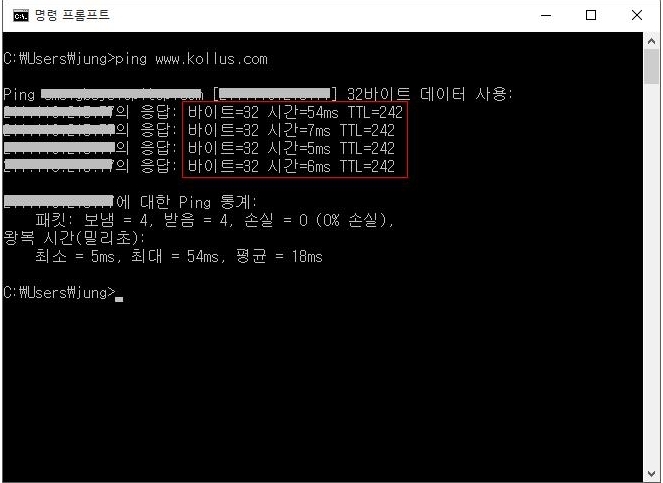
In the Command Prompt window, type "ping www.kollus.com" and press Enter. If the response time is shown as 100ms or less, the connection is normal.
However, you may see a screen like the one below:
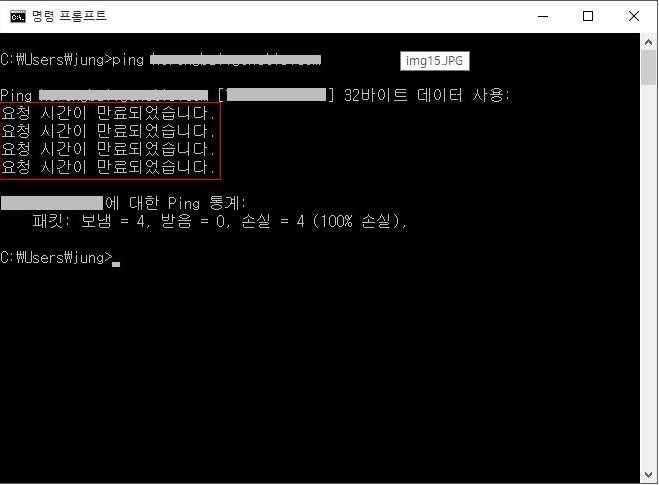
If you see the message "Request timed out," as shown above,
it means your PC is unable to establish a stable connection to the content streaming server.
Please contact your internal network administrator or IT department with this information to request a firewall exception.
- QThe player screen keeps glitching.
-
A
Kollus Player utilizes True Color (32-bit) mode and hardware acceleration features.
Therefore, if your environment is configured differently, the video may not display correctly during playback.
The following guide is based on Windows XP. For Windows 7, 10, or later versions, settings may vary depending on your device.
Please refer to the manual provided by your monitor or graphics card manufacturer for specific configuration steps.
(STEP 1)
Right-click on your Desktop > Select Properties > Click the Settings tab.
(STEP 2)
In the screen provided, check the [Color Quality] section.
Make sure it is set to True Color (32-bit) or Highest (32-bit), then click the [Advanced] button.
(STEP 3)
Click the [Troubleshoot] tab, move the Hardware Acceleration slider toward "None," and click OK.