


 Log in to the system.
[User Guide] 📥How to Use the Site (Step-by-Step Guide)
- AuthorGroomer0
- Posted2026.01.11 17:00
- Views231
Welcome to the New Groomer0
Groomer0 has been renewed to provide a more convenient learning environment.
Please follow the guide below to learn how to log in, take courses, make payments, and manage your account.
Site User Guide (Step-by-Step)
STEP 1. Login & Sign Up +
Mobile
PC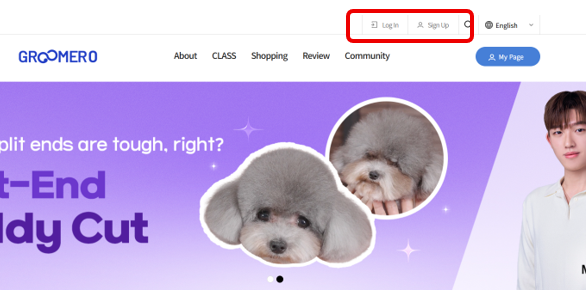
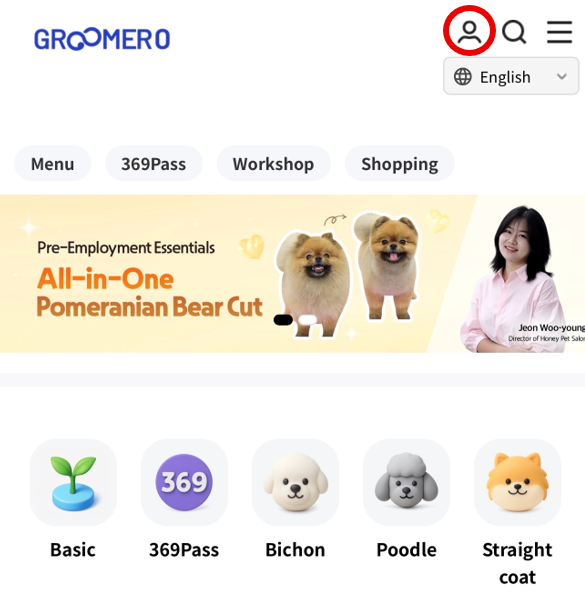
• Tap the [User Icon] in the top right corner
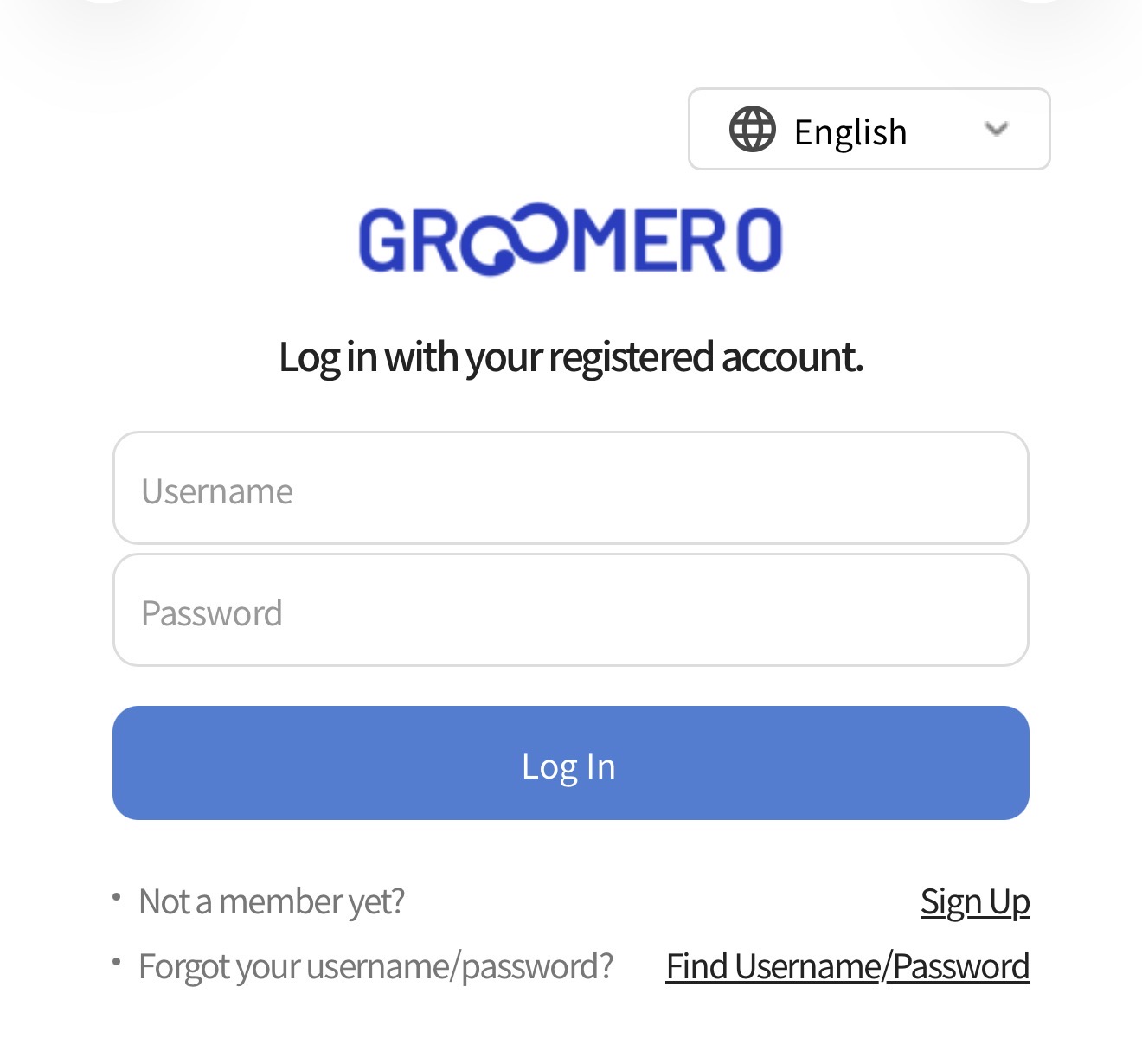
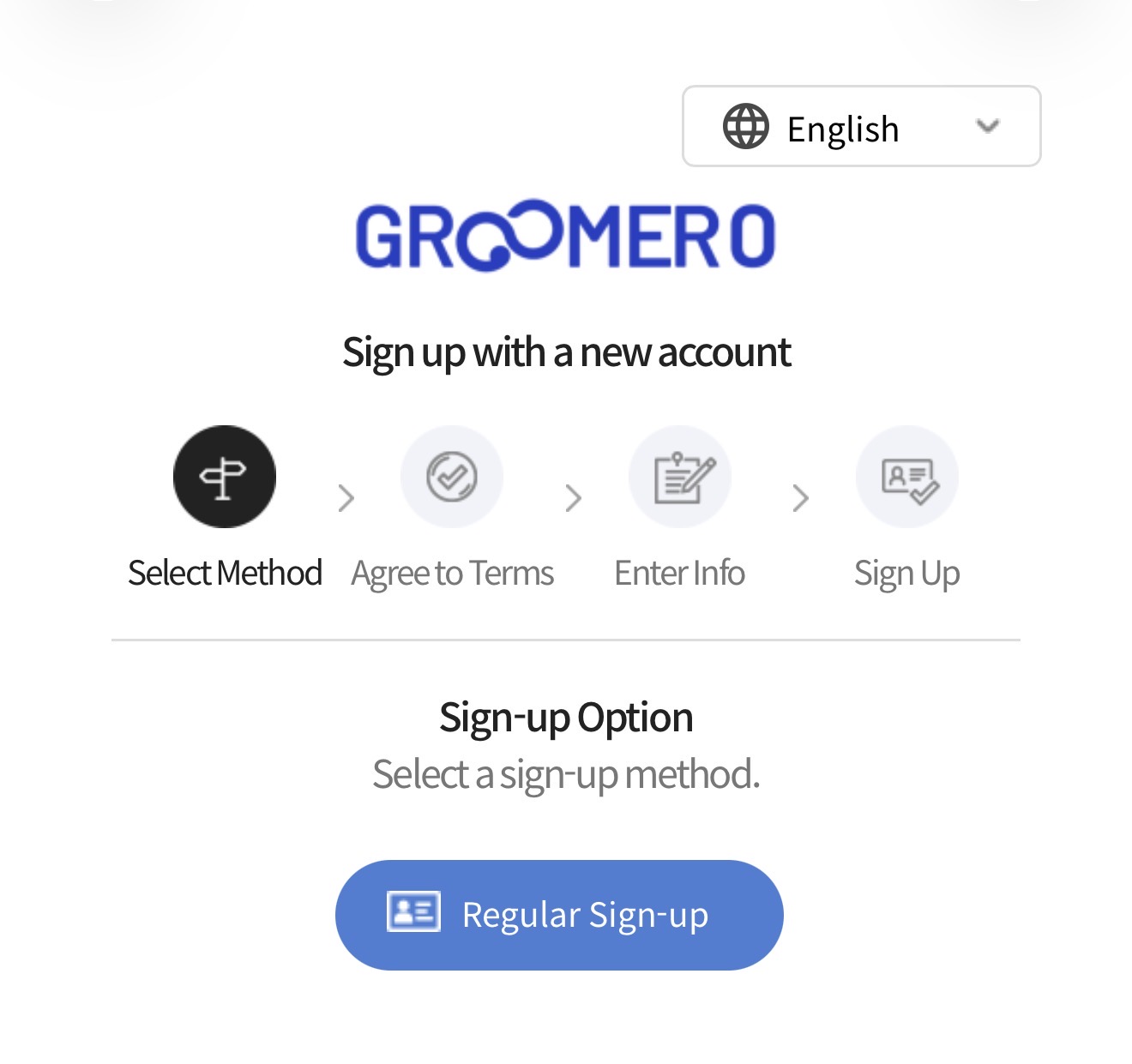
• Login or Sign up for a new account
• Login or Sign up for a new account
PC
• Click the [Login/Sign Up] button in the top right corner
STEP 2. Finding a Course +
• Browse recommended courses on the main page or select a category via the [Menu (Hamburger) Icon].
• Check course curriculum, enrollment period, and pricing on the details page.
• Check course curriculum, enrollment period, and pricing on the details page.
STEP 3. Enrollment Status +
Mobile
PC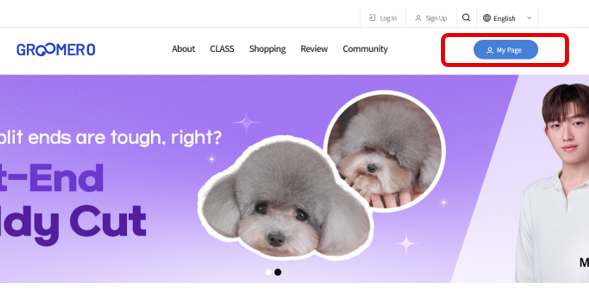
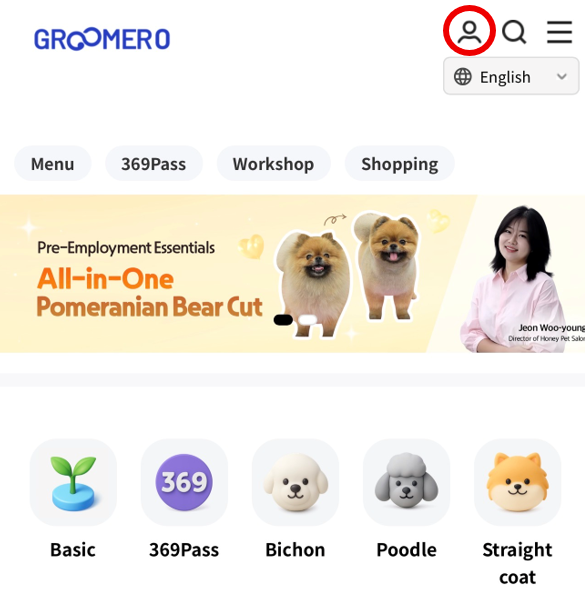
• Tap the [User Icon] to view active courses.
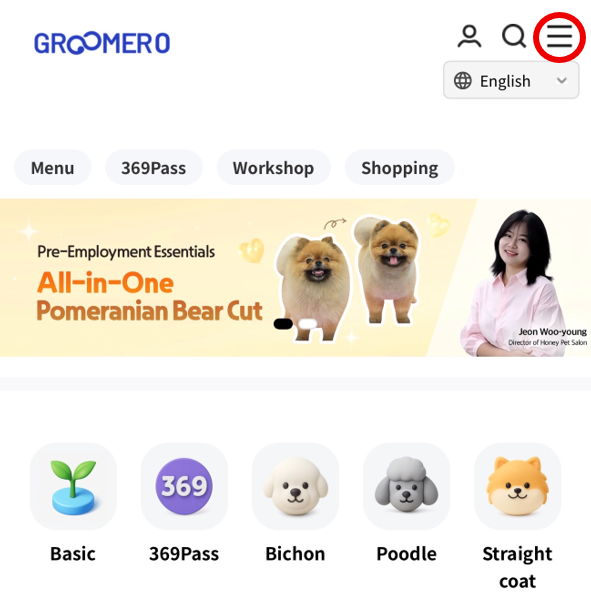
• Tap the [Menu Icon] to manage Payments, Coupons, and Pass subscriptions.
• Tap the [Menu Icon] to manage Payments, Coupons, and Pass subscriptions.
PC
• Click [My Page] in the top right corner.
STEP 4. Mandatory Security Player (First time only) +

• Install **Kollus Player** from the App Store (iOS) or Play Store (Android) to play course videos.
STEP 5. Payment & Starting Class +
• Once payment is complete, access your course under [My Page] > [Learning Status] or [Ongoing Courses].
STEP 6. Coupon Registration & Use +
Mobile
PC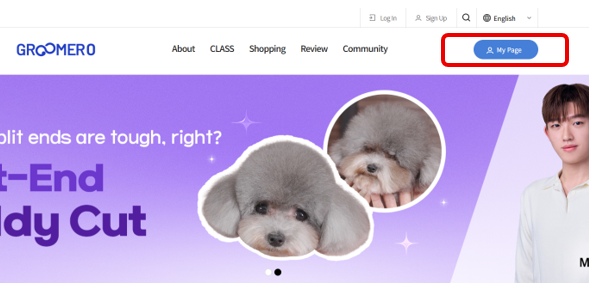
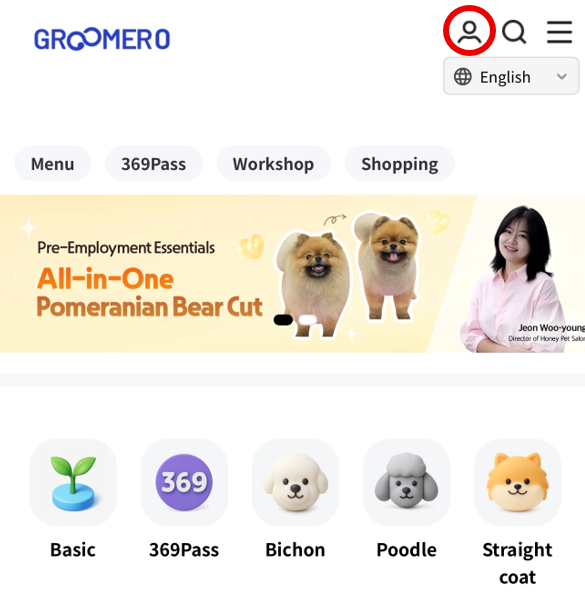
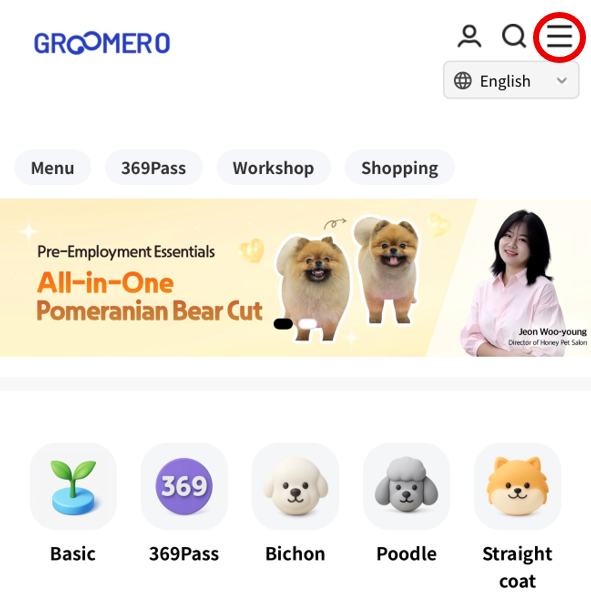
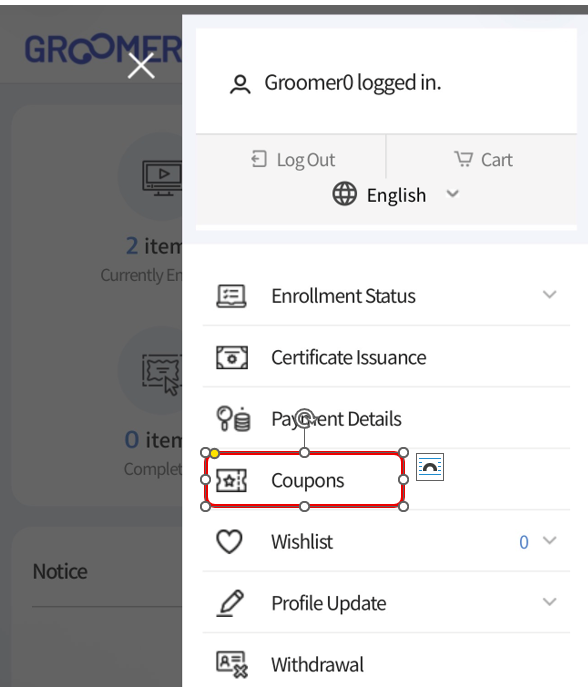
• Tap [User Icon] > [Menu Icon] > [Coupon Management] to register and check your coupons.
PC
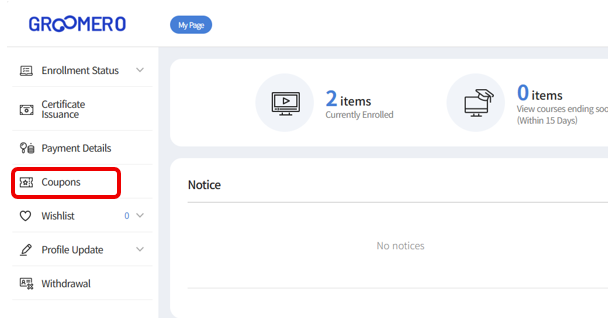
• Go to [My Page] > [Coupon Management] on the left sidebar.
STEP 7. 369Pass Subscription Status (Coming Soon)+
Mobile
PC
• Tap [User Icon] > [Menu Icon] > [Free Pass Status] to view your pass information.
PC
• Go to [My Page] > [Free Pass Status] on the left sidebar.
STEP 8. Learning Management +
• In My Page, you can:
· View active courses and their expiration dates
· Request course pause or extension (Available for ongoing single courses)
· View active courses and their expiration dates
· Request course pause or extension (Available for ongoing single courses)
STEP 9. Key Enrollment Policies +
• Standard Duration: 10 days
• Extensions: Available for most single courses and selected packages
※ Specific policies may vary by course. Please check the individual course page.
• Extensions: Available for most single courses and selected packages
※ Specific policies may vary by course. Please check the individual course page.
STEP 10. Security Player Troubleshooting +
STEP 11. Go to FAQ
STEP 12. Customer Support
If you have any questions or experience difficulties, please contact us via the Channel Talk chat icon at the bottom right of the site.