


 Log in to the system.
- QMobile Error Codes (-8633, -8632, -8900)
-
A
⚠️ Kollus Player Error Troubleshooting Guide
If you encounter errors -8633, -8632, or -8900 in a mobile environment, please refer to the solutions below based on the error code.
1. Error Code Details & Causes
✅ Solutions
STEP 1. Check for App Updates- Android: Search [kollus player] in Google Play Store → Update
- iOS: Search [kollus player] in App Store → Update
STEP 2. Verify Content PlaybackRestart the app after the update and try playing the content again.
※ If the problem persists after the update:
We recommend uninstalling and reinstalling the app.
- QRecording capture program conflict | error code 1002
-
A
Recording & Capture Program Conflict Resolution Guide (Error Code 1002)
Kollus Player includes features to block capture programs to protect copyright. Playback may be restricted if unauthorized access is detected. If the player does not work correctly, we recommend testing it in at least two different browsers.
[Windows] How to Disable Game Bar and DVR Settings (Win 10/11)
Windows 10/11 includes built-in game recording features such as the Broadcast DVR Server (bcastdvr.exe).
- Disable Game Bar: Settings > Gaming > Toggle off "Open Game Bar using this button on a controller"
- Registry Edit (Advanced): Create a GameDVR entry under
HKEY_LOCAL_MACHINE\SOFTWARE\Policies\Microsoft\Windows\and save the default value. - Important: After changing settings, you must click 'Restart' (not 'Shut Down') for the changes to take effect.
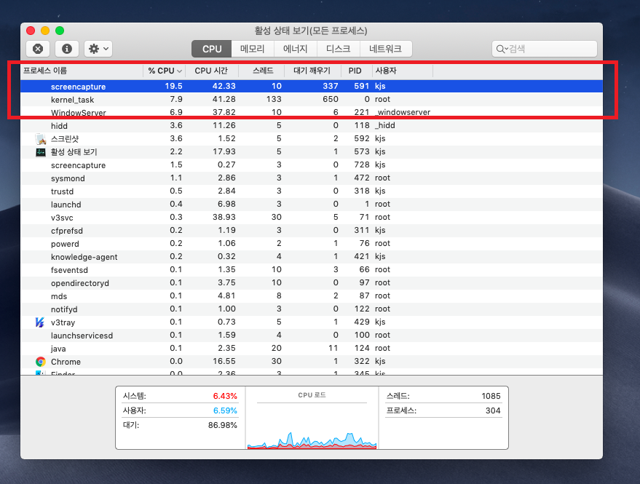
[Mac OS] Close QuickTime Player and Screenshot Processes
Mac OS has a built-in screen recording feature in QuickTime Player. The player will not work if this is running.
- Quit QuickTime: You must completely [Quit] the player from the top-left menu bar.
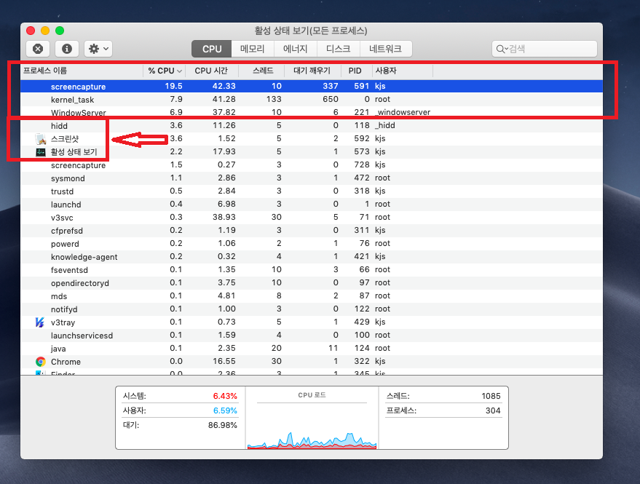
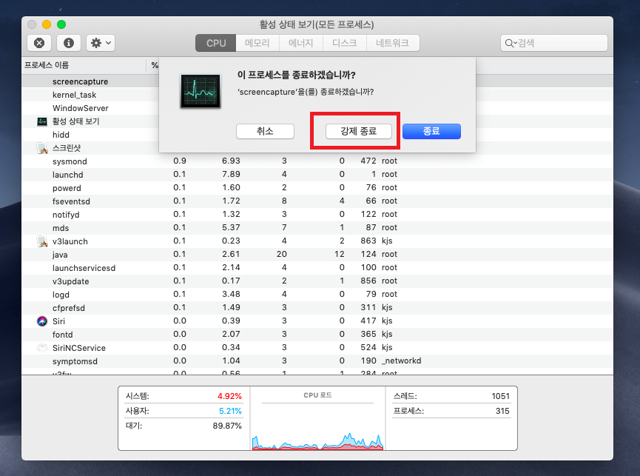
- Screenshot Process: As there is no "Exit" button for background captures, go to [Utilities > Activity Monitor] and force quit any screenshot or screen recording processes.
- Other third-party capture programs must be identified and closed via the Activity Monitor.
[Browser] Chrome Extensions and Remote Desktop Conflicts
Playback will stop if any browser extensions with screen sharing or recording features are active.
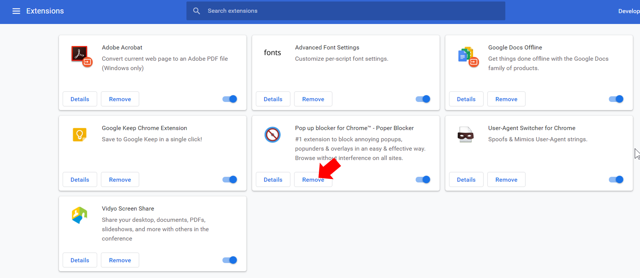
- Chrome Remote Desktop: Please remove this if the player detects it.
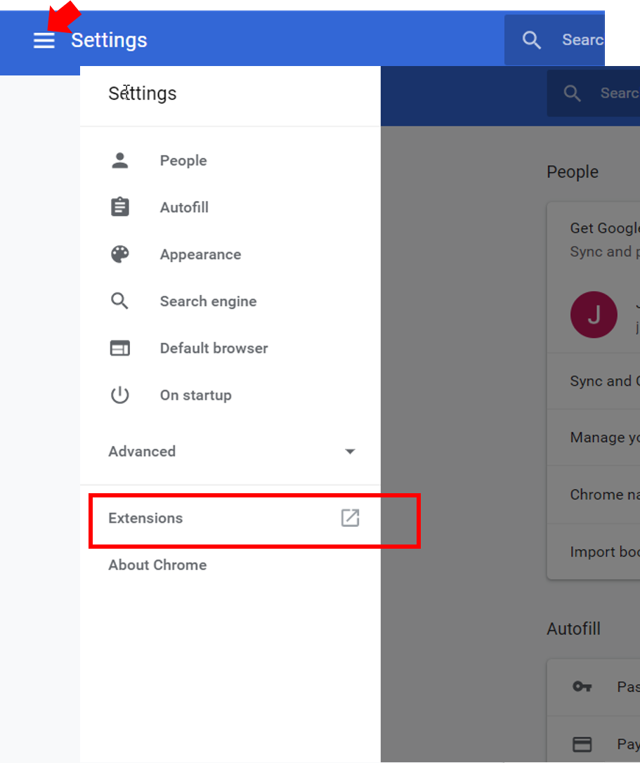
- Remove Extensions: Type
chrome://extensions/in the address bar and Remove any capture-related apps. - Detect Specific IDs: Delete folders named
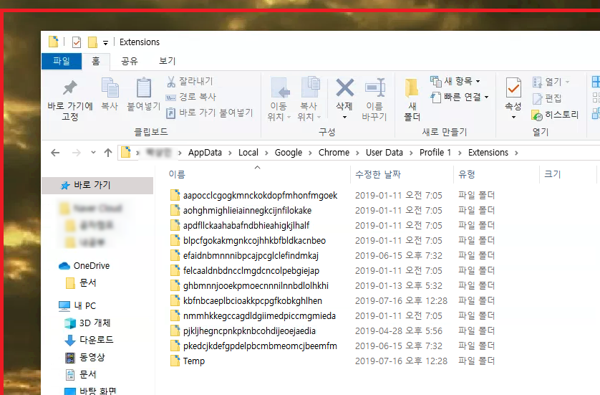
nlipoenfbbikpbjkfpfillcgkoblgpmj,cdnmddhnbgepkaeogphkppeobbjkcpke, etc. - Sync Issues: Settings from other PCs may sync automatically. We recommend disabling sync or using a different browser (Whale, Firefox, etc.).
- Manual Deletion Path: Delete relevant folders in
%LOCALAPPDATA%\Google\Chrome\User Data\Default\Extensions\ 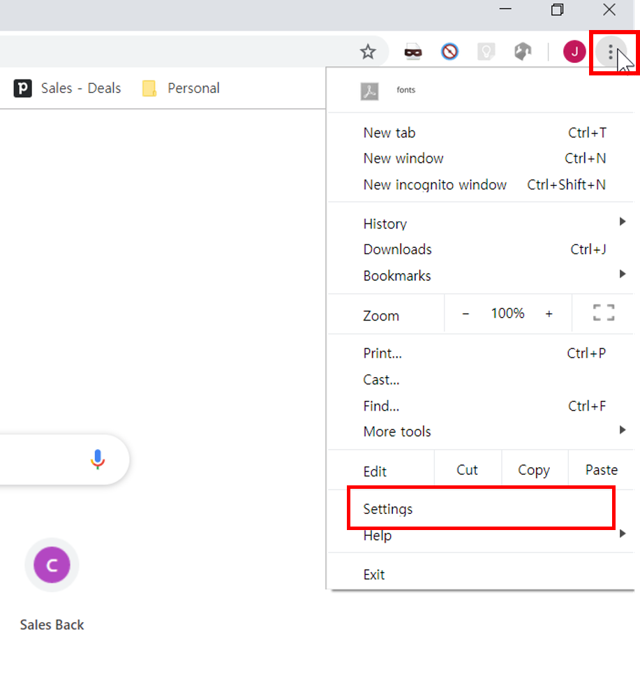
[Other] Steam, Antivirus, Mirroring, and Misc. Programs
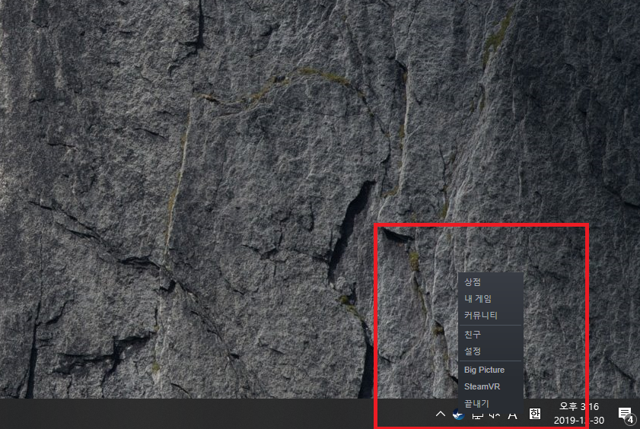
- Steam: The player may recognize recording features within
steam.exe. Please exit or uninstall Steam. - Common Apps: Programs like PicPick, Scapture, Antools, or AnCamera must be uninstalled followed by a system reboot.
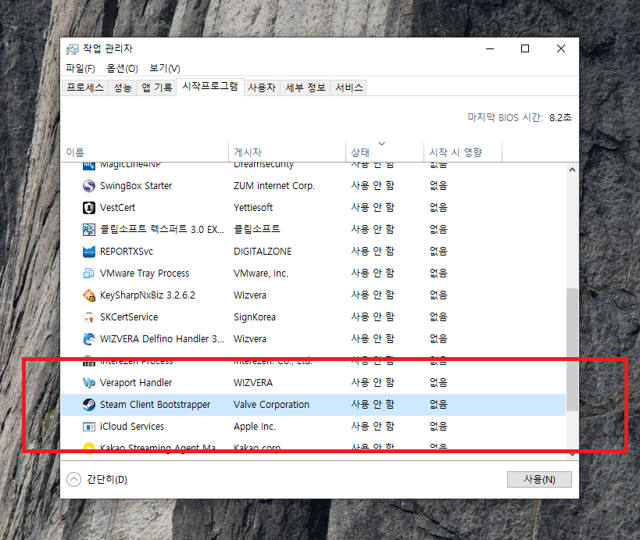
- Antivirus Conflict: If an antivirus program (like Virus Chaser) falsely flags the player, temporarily disable or uninstall it.
- Other Restrictions: Smartphone mirroring (TV Out) or UserScripts like Tampermonkey will trigger Errors 1027 or 3019.
Manual Installation of Kollus Player
Please click the appropriate link for your browser and OS.
- QCan it run simultaneously on both PC and mobile?
-
A
Simultaneous logins are not allowed. Please log out and try again.
- QThe video player is not installed.
-
A
Installing the Kollus Player program will force-close all currently running browsers.
At this time, errors may occur due to processes that did not close properly. Please close all processes related to the running browser before reinstalling.
- QThe message 'A screen capture program has been detected' appears.
-
A
To protect content copyright, Kollus Player is equipped with a feature that automatically stops playback if screen or audio capture programs are running.
Therefore, if you see the message "A capture program has been detected," please close all capture software and try playing the video again.
* For PC Users
Recommended: Uninstall capture programs and reboot, or force-close (Process Kill) all related tasks before playing.
- Even if the program is not actively running, playback may be blocked if the process remains in the background process list.
- If you do not reboot after uninstallation, residual processes may still prevent playback.
- Some antivirus software (e.g., Virus Chaser) may misidentify the player as a malicious file, preventing playback.
In this case, please pause or uninstall the antivirus software, reboot your system, and try playing the video again.
(For users of other antivirus software, please refer to: http://info.kollus.com/faq/?number=53)
For Mac OS/X: Completely terminate the QuickTime Player process.
- QuickTime Player for Mac has a built-in screen recording feature.
- Kollus Player will not run if QuickTime is active in the background.
- As QuickTime is a default macOS application, it cannot be uninstalled.
- Therefore, you must completely 'Quit' the QuickTime program from the top menu bar.
Recommended: Uninstall capture programs (e.g., Ancamer) and reboot.
For Chrome: Remove capture-related extensions (e.g., Snagit) from the Extension Plug-in menu. (http://info.kollus.com/faq/?number=49)
* For Mobile Users
Simply removing the shortcut icon does not fully uninstall the capture app.
(Please ensure the app is completely deleted via 'App Uninstall/Delete' in settings.)
Recommended: Uninstall recording apps (e.g., Mobizen) and reboot your device.
- QThe video is not downloading.
-
A
Please click the link below to install the latest version of the player.
- QThe video keeps buffering.
-
A
We recommend using a stable network connection while watching lectures. Please check your internet environment before starting your studies.
Please check the status of your Wi-Fi, modem, or router. If playback issues persist after checking, please try uninstalling and reinstalling the player.